In this guide, you can find solutions to the most common technical issues that may occur with email inboxes in the Webnode interface.
In general, issues can be identified based on the displayed error message or the behavior of the editor or email client. If the steps below do not resolve your issue, please contact us via the contact form.
TIP: If you are using external email clients, they must also be configured correctly. You can find related guides in the External e-mail clients section of our help center.
1. Authentication Failed error message
In this case, it depends on when the Authentication Failed error appears during the login process.
1.1 Authentication Failed during login

If the error message appears when logging in, it is most likely due to incorrect login credentials. We recommend checking their accuracy and possibly changing your password by following the guide How to Change the Password for Email Accounts.
1.2 Authentication Failed after login
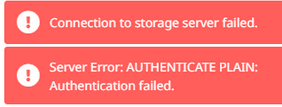
If the error message appears after logging into webmail, you likely have multiple email accounts and did not log out of a previously used one. In this case, you need to log out manually using the button in the bottom left corner.

2. Emails are not being delivered to the inbox
2.1 Forwarding
If emails are not being delivered, check whether you have set up forwarding only to another email address. In this case, messages are forwarded and do not remain in the original inbox.
If you want emails to stay in the original inbox as well, you need to configure this accordingly. See the guide How to Set Up Email Forwarding.
2.2 Email address blocked in project administration
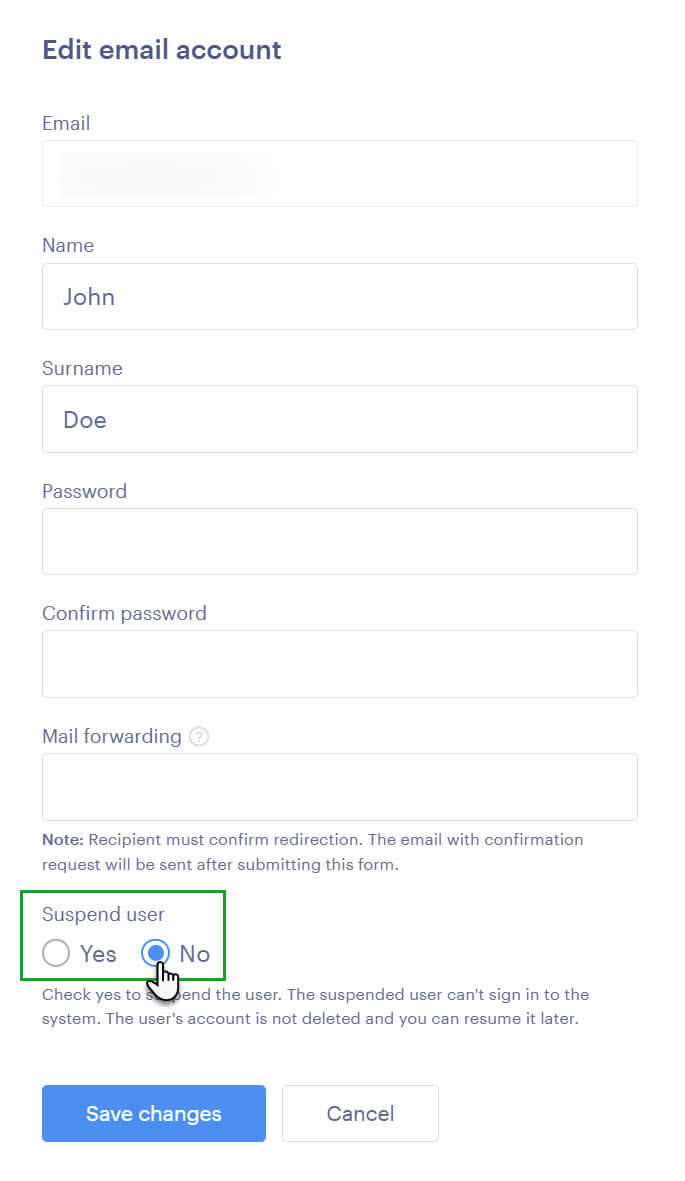
If the email address has been blocked in the project settings, emails will not be delivered. Check whether the address is blocked.
2.3 Full mailbox
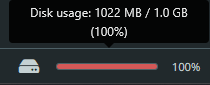
Emails may also not be delivered if your mailbox is full. The total capacity is 1 GB. In this case, delete some emails to free up space.
TIP: If you need more space, we recommend using an external email client with POP3, where emails are stored directly on your device. You can find setup guides in the External e-mail clients section.
3. Space not freed after deleting emails
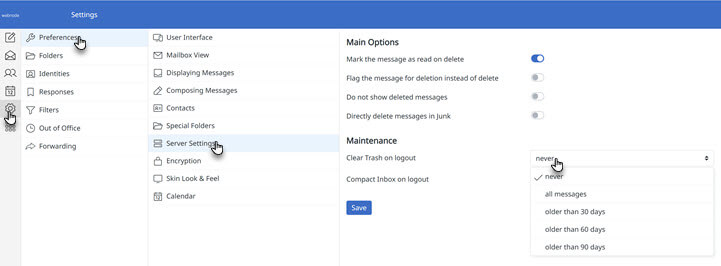
If you have deleted emails but space has not been freed, check whether you have also emptied the Trash folder, where emails are still stored for some time.
TIP: You can also set up automatic deletion. Go to Settings, then Preferences, and then Server Settings, where you can choose when the Trash should be emptied.
4. Image not displayed in automatic signature
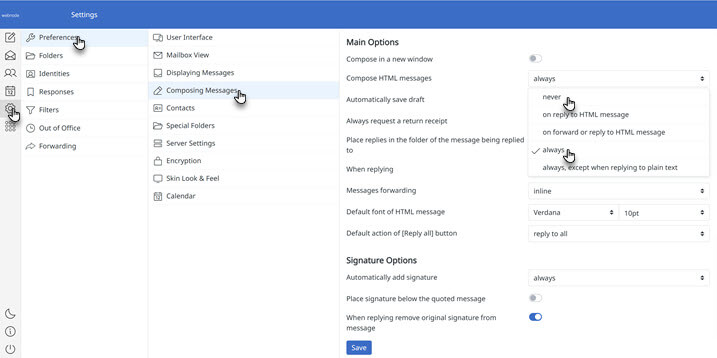
If an inserted image is not displayed in your email signature, HTML is likely not enabled. Enable it by going to Settings, then Preferences, and then Composing Messages, where you can enable HTML messages.