In this guide, you will learn how to set up email forwarding in your own e-mail address. Forwarding can be set up in the email interface (to any number of addresses) or in the project administration (to only one address).
Via Webnode webmail
1. Log in to Webmail following the instructions in How to Log in to Your Email Inbox.
2. In the Webmail interface, click on the gear icon in the left panel and then select Filters.

3. Click the Create button in the top right corner. Then enter a name for the filter. Select all messages as the Scope, set Redirect message to as the Action, and enter the email address where you want emails to be forwarded.

If you want to forward emails to multiple addresses, click the plus button and again select Redirect message to as the Action.

Emails are forwarded to the selected email addresses and do not remain in the original inbox. If you want emails to stay in the original inbox, select Send message copy to instead of Redirect message to.

Do not forget to confirm the settings by clicking Save.
TIP: If you want to cancel email forwarding, simply delete the Filter by clicking the Delete icon in the top right corner.

TIP: You can read your emails in the Webnode email interface or set them up in an email client such as Outlook.
Via administration
WARNING: In the project administration, forwarding can be set to only one address. If you want to forward to multiple addresses, this must be done in the mailbox interface (see the relevant section of this guide above).
1. Log in to your account on the Webnode homepage. Once you are in the editor, click SETTINGS.

2. In the Email Accounts tab, click MANAGE EMAILS.

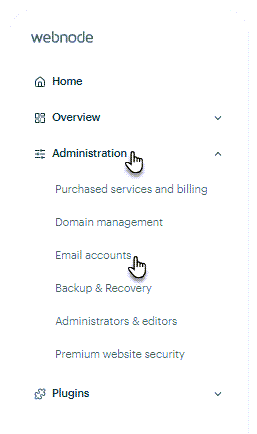
3. The second way is to access directly in the project administration. Here click on Administration and then on Email Accounts.
4. Choose the email address you would like to have forwarded and click Edit.

5. In the Mail forwarding field, enter the address to which you want your emails forwarded. With this setting, messages are forwarded to the selected email address(es) and will not remain in the original mailbox. If you want to forward emails to multiple addresses, including the default mailbox, this must be done in the mailbox interface (see the relevant section of this guide above).
Click Save changes to confirm the forwarding.

In order to activate email forwarding, you must verify your email address by clicking the confirmation link that will be sent to the destination email address.
TIP: If you want to cancel email forwarding, simply delete the address from the Forwarding line. Then save the changes by clicking the Edit Account button.