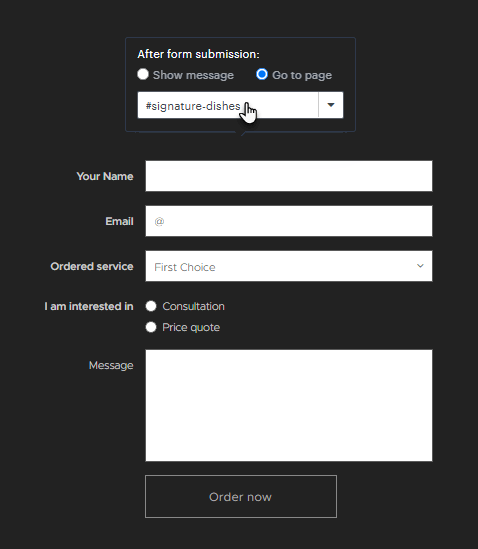
In this guide, you will learn how to add section links (anchors) to buttons, text links, as an action after submitting a form (redirect to another page).
NOTE: This feature only works for anchors placed on the same page.
Creating an anchor
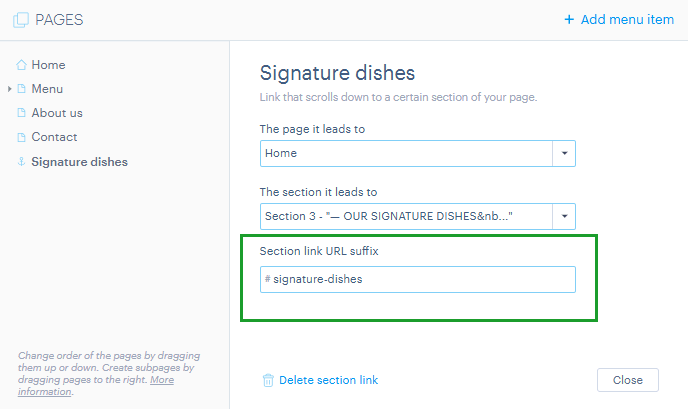
The first step is to create the anchor itself, which you can do by following the guide How to add a section link (anchor). As part of this step, the section link URL is created, which is then used for buttons, text links, and forms.
NOTE: The section link URL must be entered including the hash (#) character (also known as a hashtag; the keyboard shortcut is Right Alt + X).
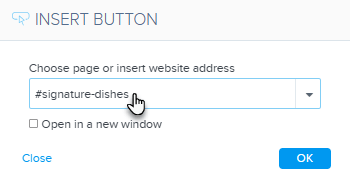
Button
When adding a button, a link field is available — enter the section link URL there.
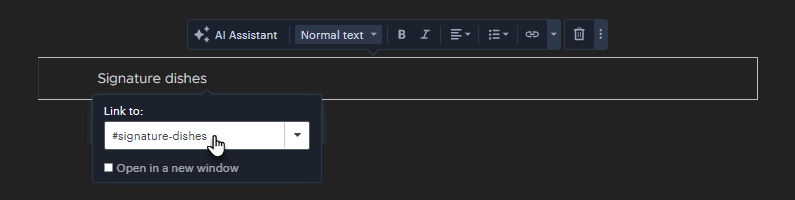
Text link
When inserting links into text, enter the section link URL.
Form
Within the form settings, you can set a redirect to another page as the action after submission — here you can also enter the section link URL.