In this guide, you can learn how to connect your e-shop with Klarna through Stripe. Klarna is a payment gateway that allows customers to shop with deferred payments, installment payments, or immediate payment through its payment platform.
The Setup
1. Add a payment method following the guide How to set up payment methods.
2. In the payment methods menu, select Klarna (via Stripe).
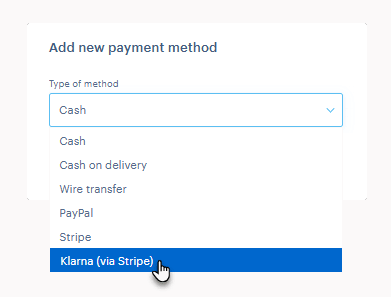
3. Click the Connect via Stripe button and you will be redirected to the account details settings.
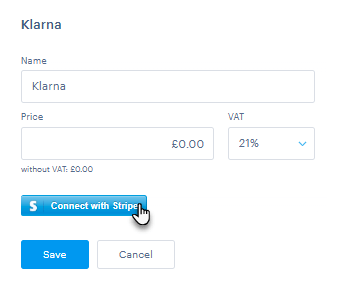
Stripe Registration
1. If you already have an account, simply log in; otherwise, you will need to sign up.
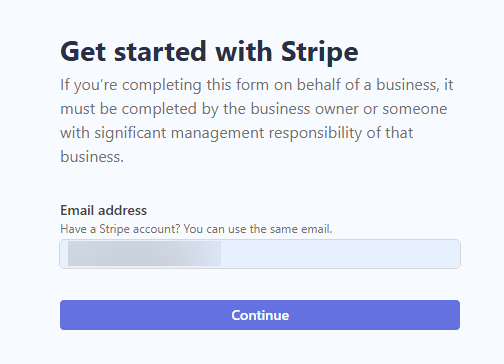
2. If you already have an account for your e-shop, you can select the existing one. Otherwise, you will need to create a new account.
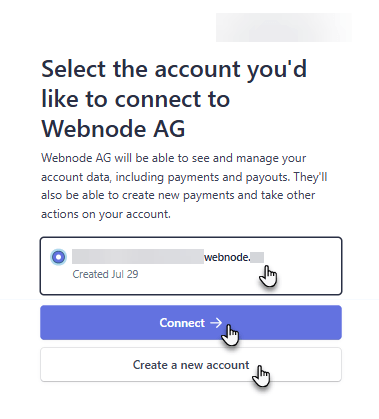
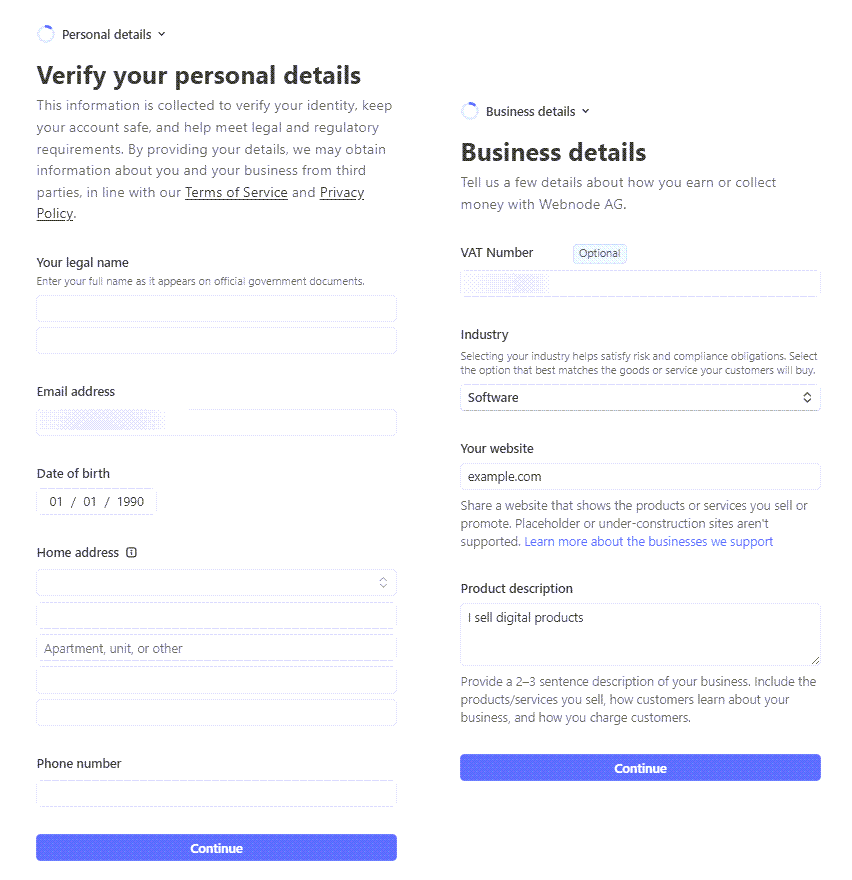
3. If you don't have an account yet, the system will guide you through entering your personal data, business information, and payment setup.
You will need to enter personal and company details step by step.
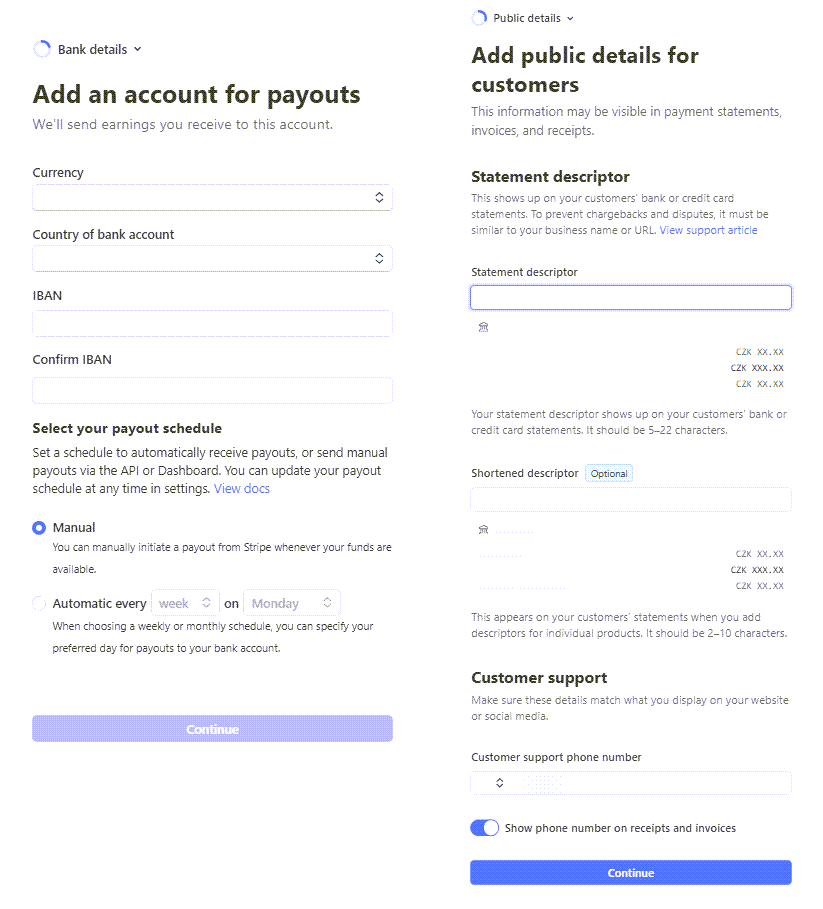
Next, enter your bank account information, payout method, and the data that will be displayed in the payment gateway.
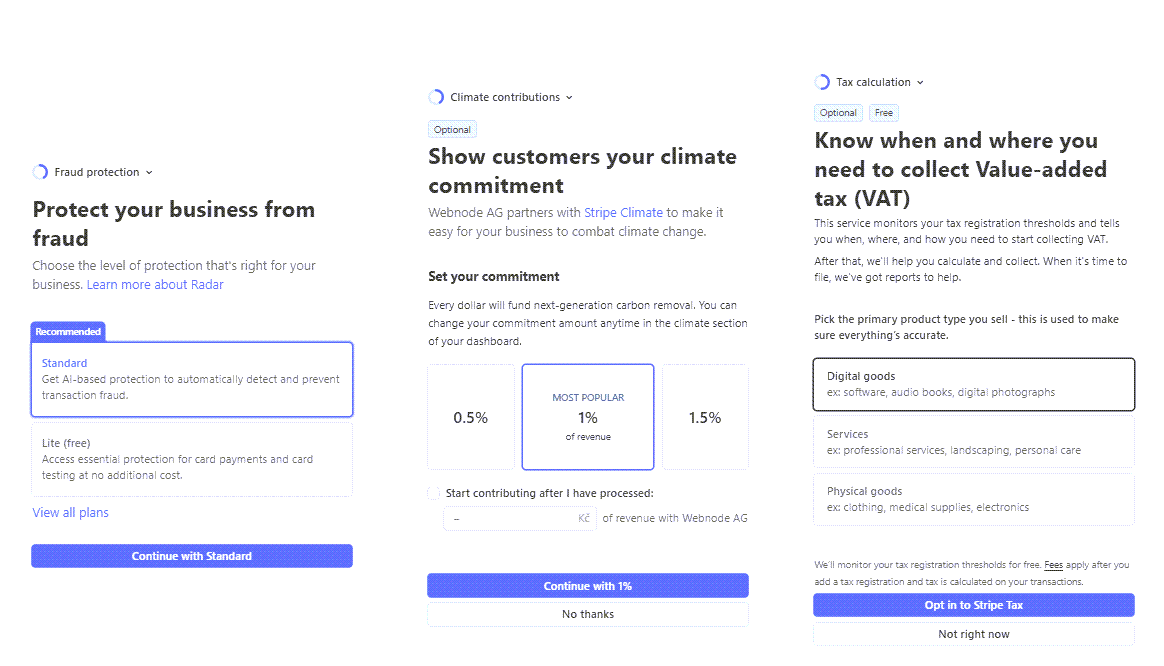
Payment protection, climate commitment, and tax settings.
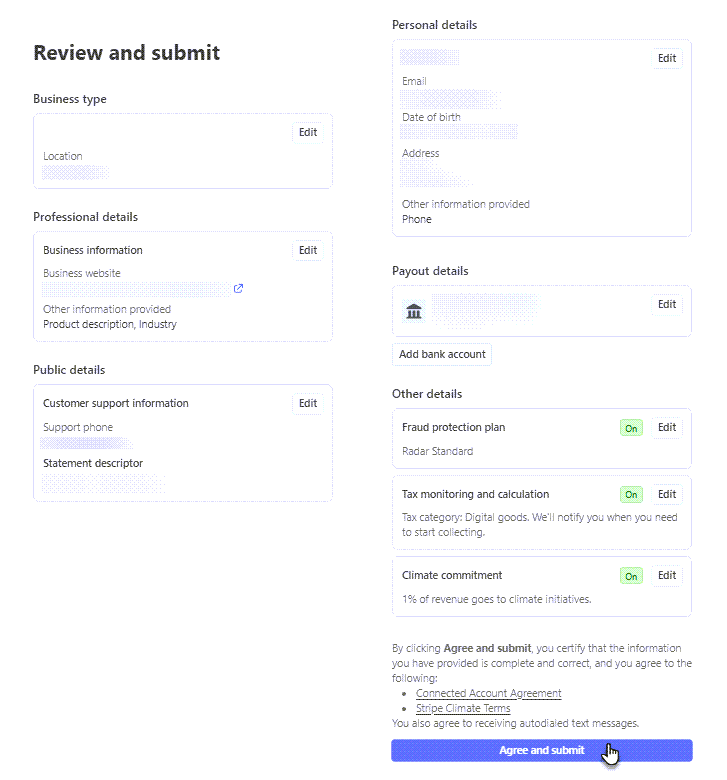
Finally, simply review the entered data and click on agree and submit to accept the terms of use.
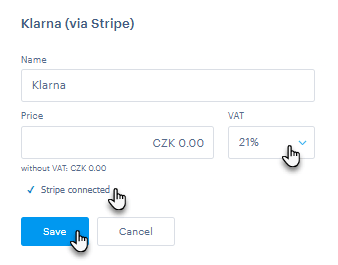
4. After completing registration and setup, the system will redirect you back to the Webnode editor. If all details were filled in correctly, a window will appear confirming that the payment method has been successfully connected. If you wish, you can now set the price and VAT, and then click Save to save these payment method settings.
Enabling Klarna in the Stripe Admin
1. Go to the Stripe admin dashboard.
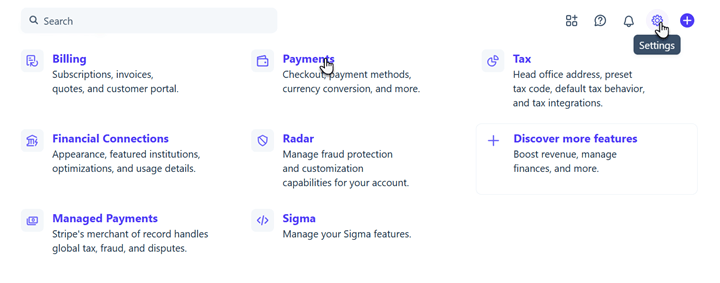
2. Click the gear icon in the top right corner and select Payments.
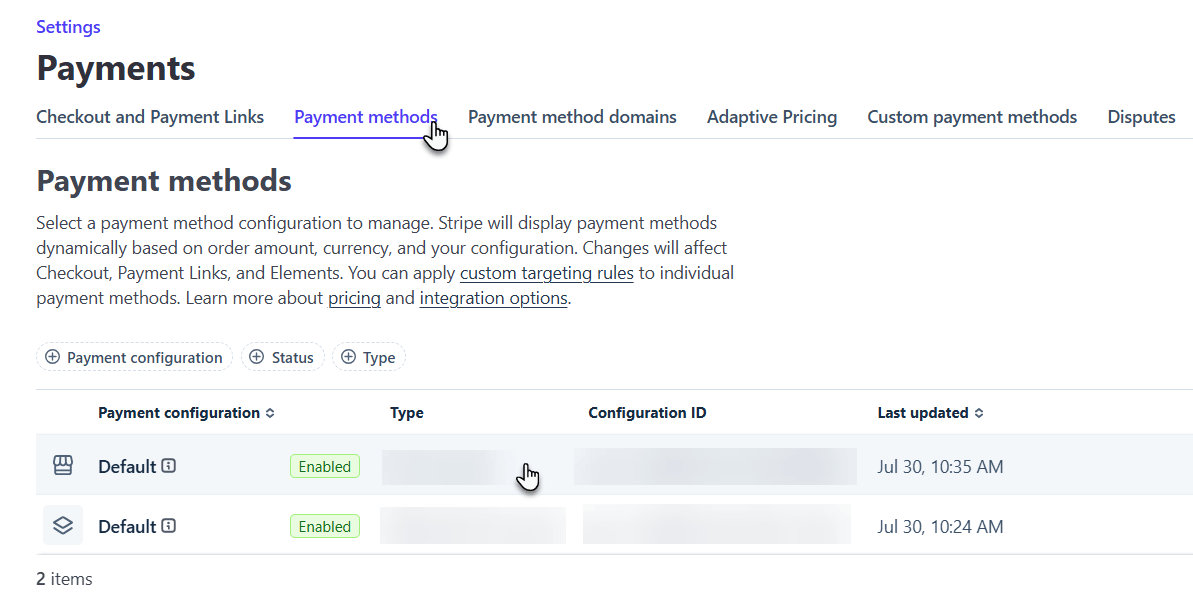
3. Click Payment methods and select your account.
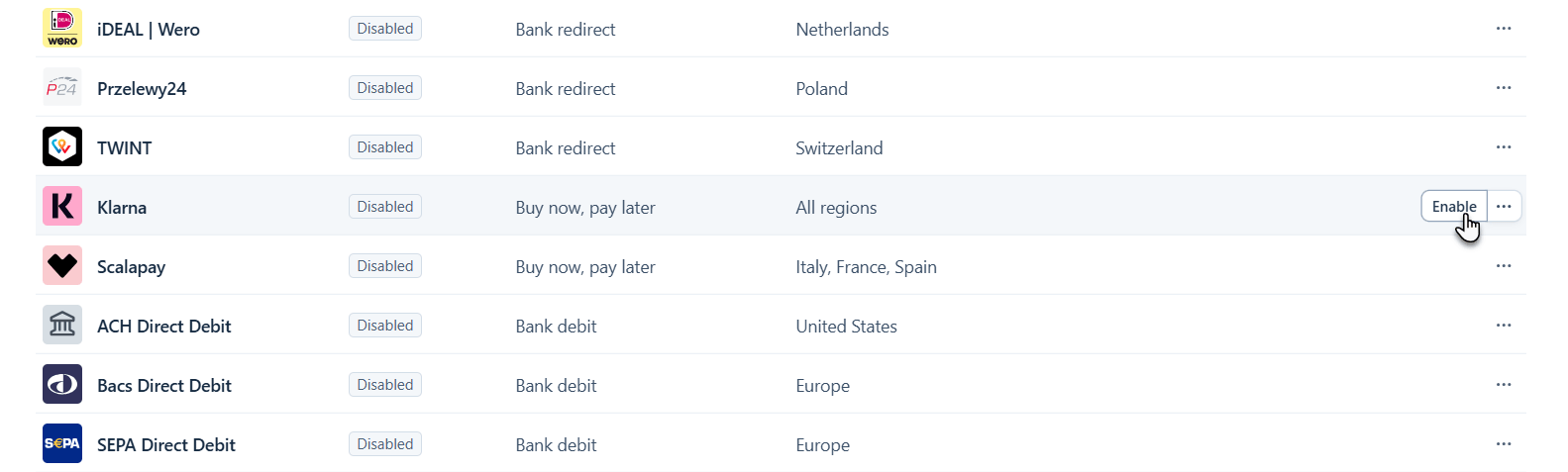
4. Find Klarna in the list and click Enable.
5. Klarna is now set up successfully.

TIP: Additional help can be found directly at Klarna.
TIP: Besides Klarna, you can also use other payment methods. Learn more in the related guides: How to set up payments via PayPal, How to set up card payments via Stripe payment gateway and How to set up bank transfer payment.