In this guide, you will learn how to insert a background video on your pages—either in the page header or in a standard section. Background video is a feature available starting from Premium Plan Mini.
Inserting the video
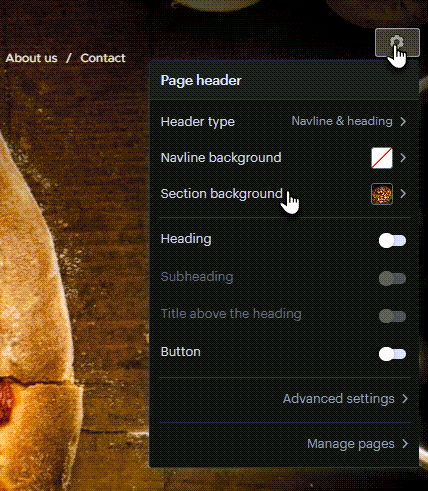
1. In the page header or section, click the gear icon and then select Section Background.
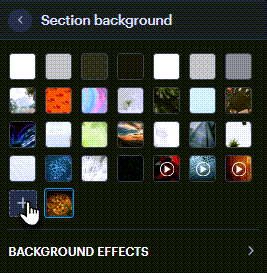
2. Click the plus button.
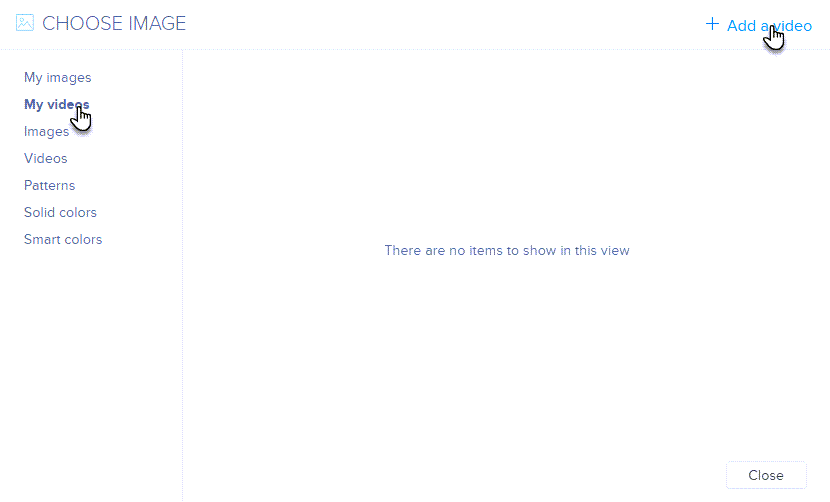
3. In the My Videos section, click Add a video.
4. Paste a YouTube or Vimeo link and confirm by clicking OK.

5. Select the video from the list.

6. The video is now inserted as the background of the page.

TIP: In the editor, the video plays once, but in the published version it will loop continuously (without sound).